

Before you begin
Before using Algolia Recommend with Magento, check the following requirements:- Algolia extension for Magento Open Source and Adobe Commerce version 3.8 or later.
- You’re sending click and conversion events. Algolia Recommend relies on click and conversion events to keep improving its recommendations. You can also upload events from a CSV file.
-
You have trained Recommend models.
You can check the status of your models on the Algolia Recommend page in the dashboard, in the Existing models section.

Configure Algolia Recommend for Magento
In your Magento dashboard, go to Stores > Configuration > Algolia Search > Recommend Products Settings. You can enable these recommendation models:Frequently bought together
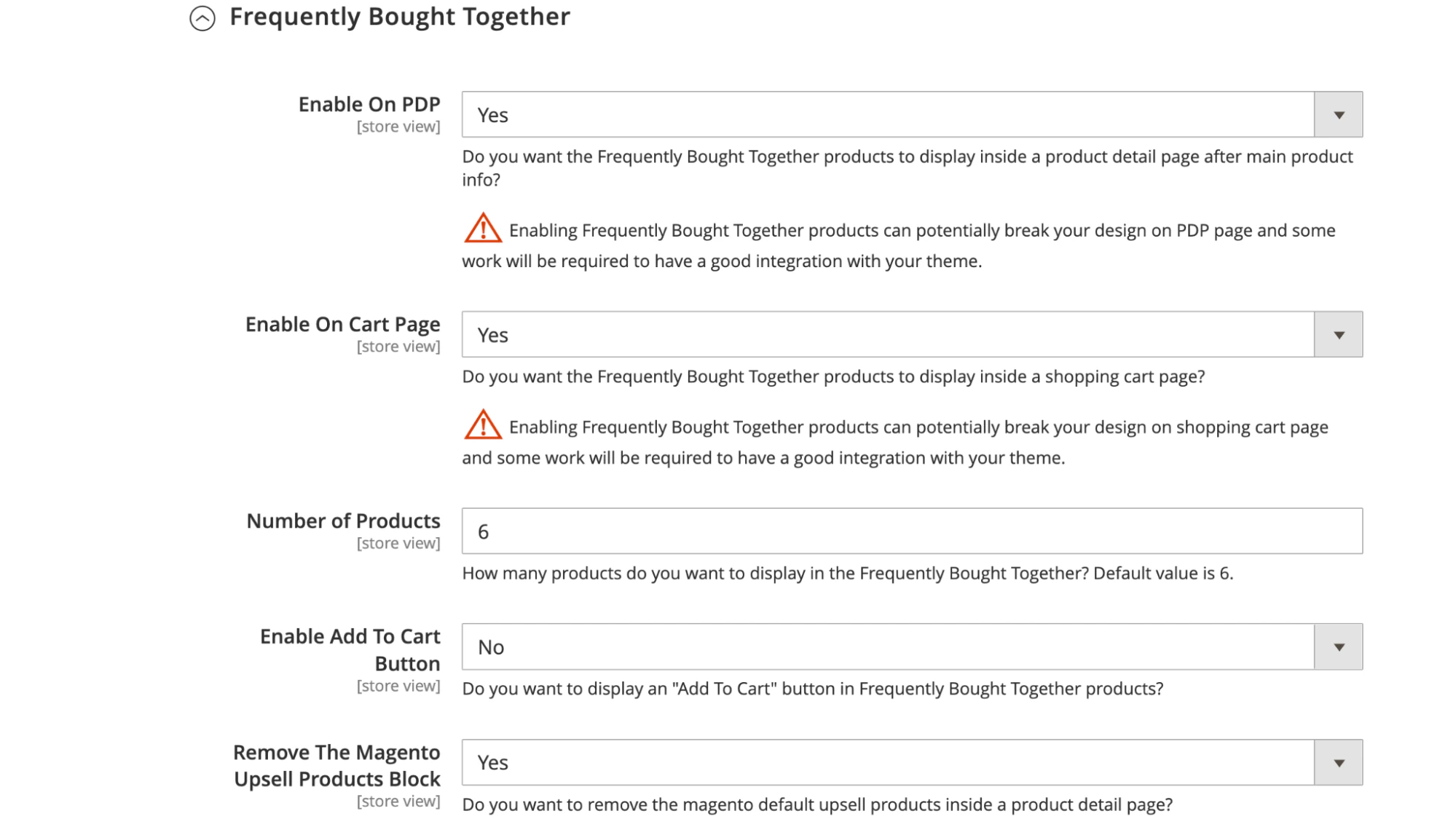
- Set Enable on PDP to Yes to show recommendations from this model on product detail pages below the main product information. If you use recommendations from Algolia’s Frequently bought together model, remove the default upsell products from the interface.
- Set Enable on Cart Page to Yes to show Frequently bought together recommendations on the shopping cart page below the More choices section.
Remove the Magento upsell products block
To hide Magento’s default upsell products, set Remove The Magento Upsell Products Block to Yes.Related items
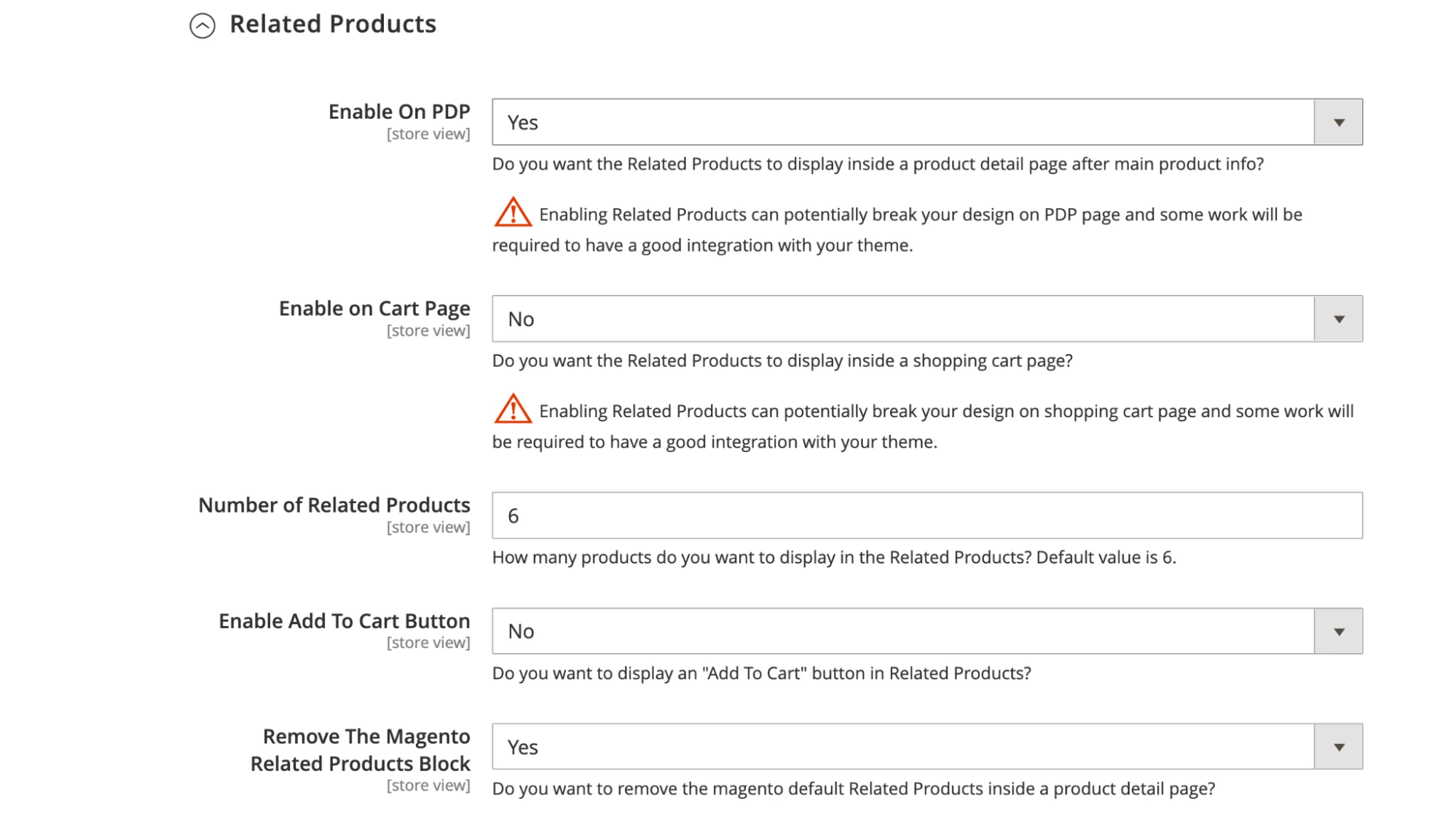
- Set Enable on PDP to Yes to show recommendations from this model on product detail pages. The recommendations appear below the main product information after the Frequently bought together recommendations (if active). If you use recommendations from Algolia’s Related items model, remove the default related items from the interface.
- Set Enable on Cart Page to Yes to show Related items recommendations on the shopping cart page.
Remove the Magento related items block
To hide Magento’s default related items, set Remove The Magento Related Items Block to Yes.Trending items
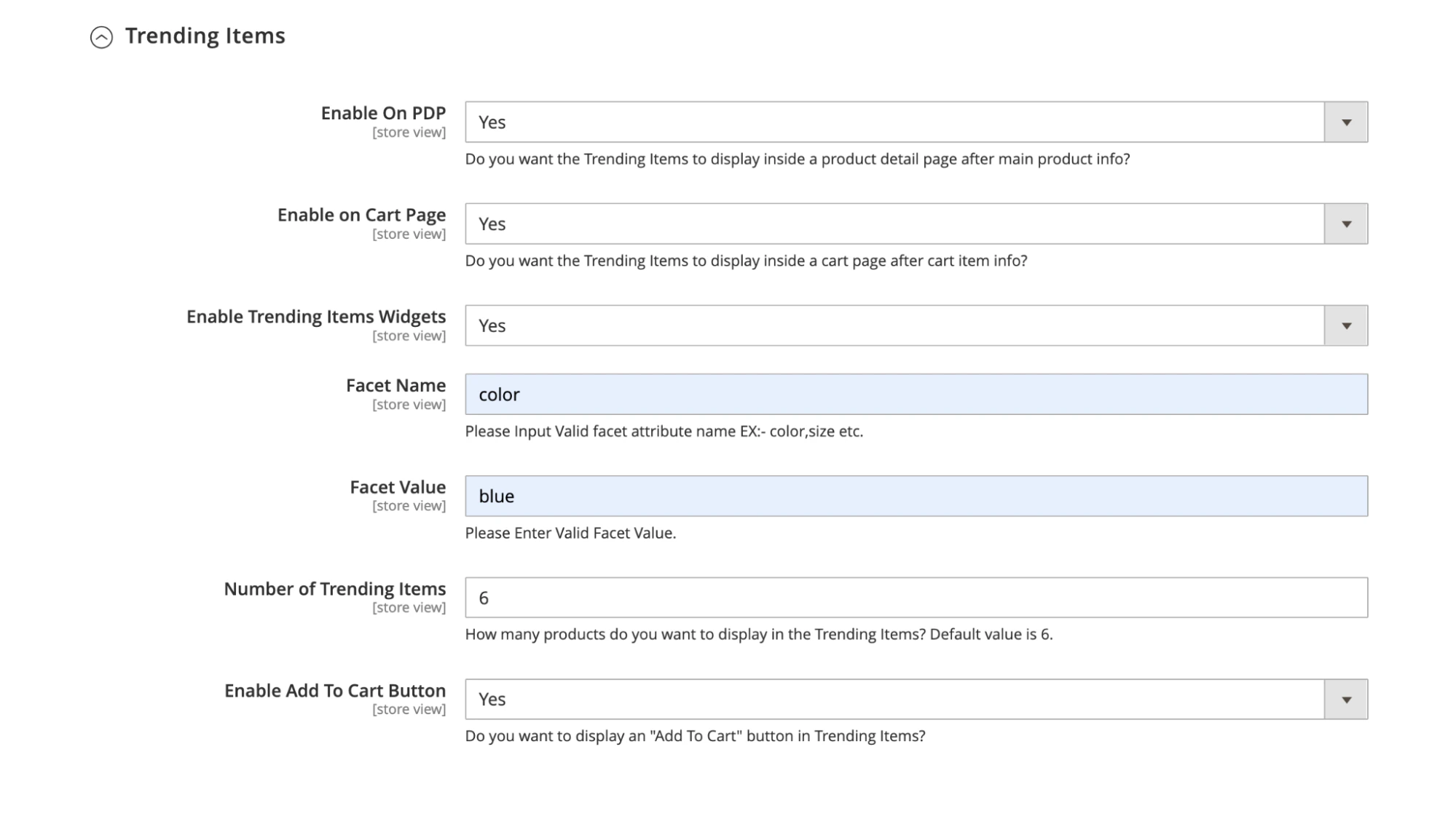
- Set Enable on PDP to Yes to show the recommendations from the Trending items model on product detail pages. The recommendations appear below the main product information after the Frequently bought together and Related items recommendations (if active).
- Set Enable On Cart Page to Yes to show the Trending items recommendations on the shopping cart page.
- Set Enable Trending Items Widgets to Yes to show the Trending items recommendations on CMS pages that have the Trending items widget.
Configure the Trending items widget
Add a Trending items widget with the Algolia Recommend Trending Items widget.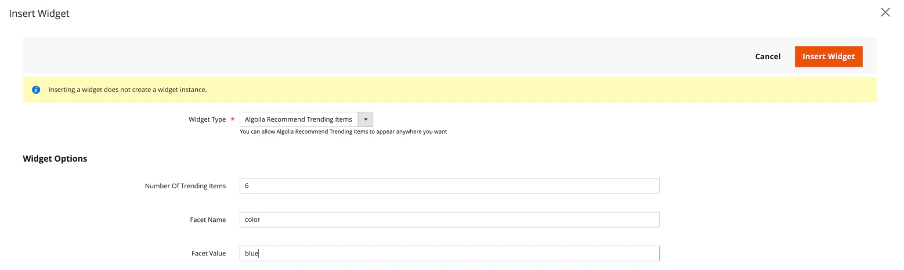
- Number of Trending Items. Select the number of recommendations you want to show in the widget.
- Facet name. Select a facet for filtering the recommendations. For example,
color. - Facet value. Select a value that matches the facet name. For example, if you select
coloras the facet name, selectingblueshows only blue products in your recommendations.
Looking similar
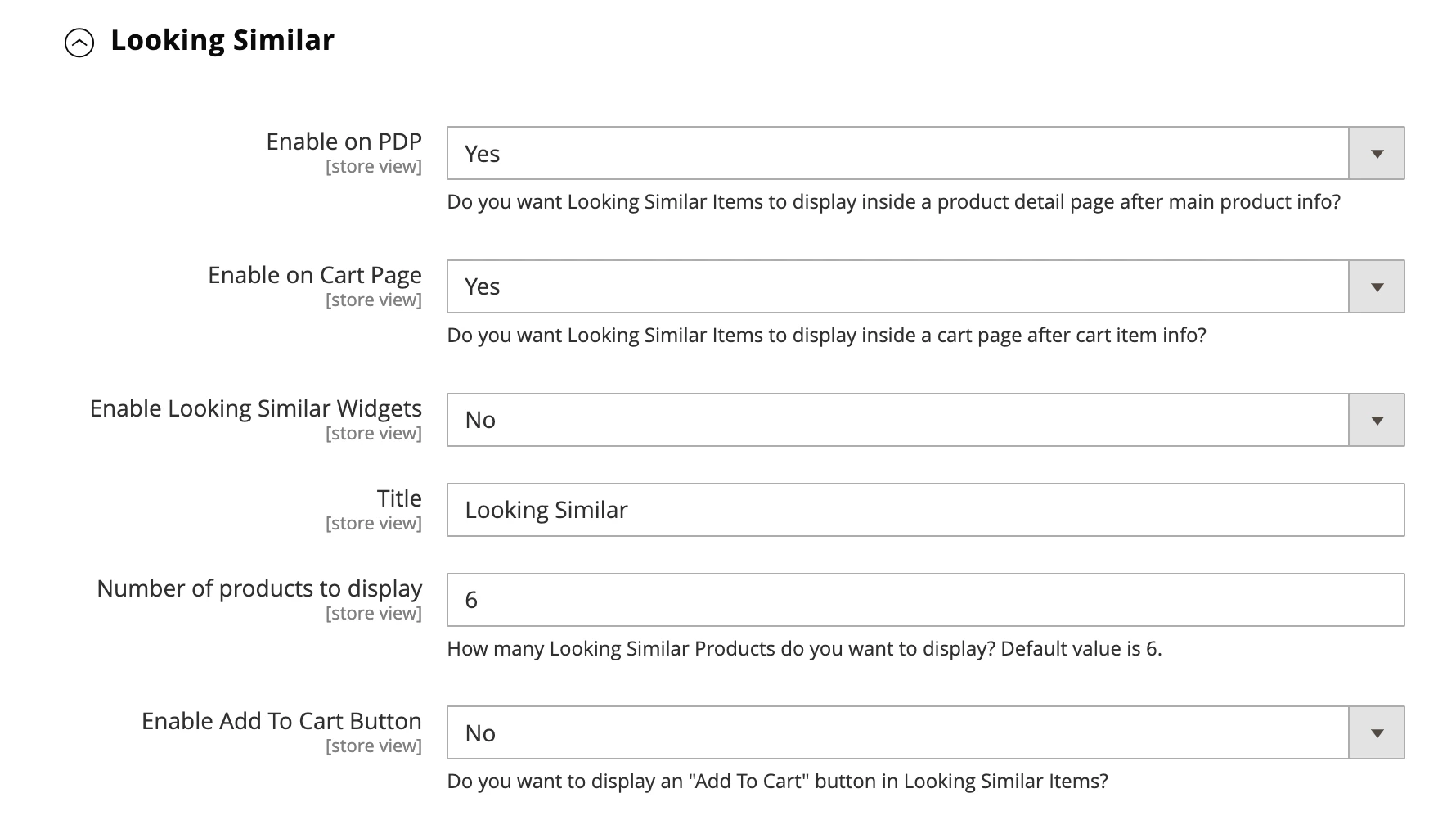
- Set Enable on PDP to Yes to show similar-looking items at the bottom of the product detail page.
- Set Enable On Cart Page to Yes to show similar-looking items on the cart page.
- Set Enable Looking Similar Widgets to Yes to show similar-looking items on the CMS or other pages that support widgets.
Configure Looking similar widgets
Create a widget with the Algolia Looking Similar Items widget.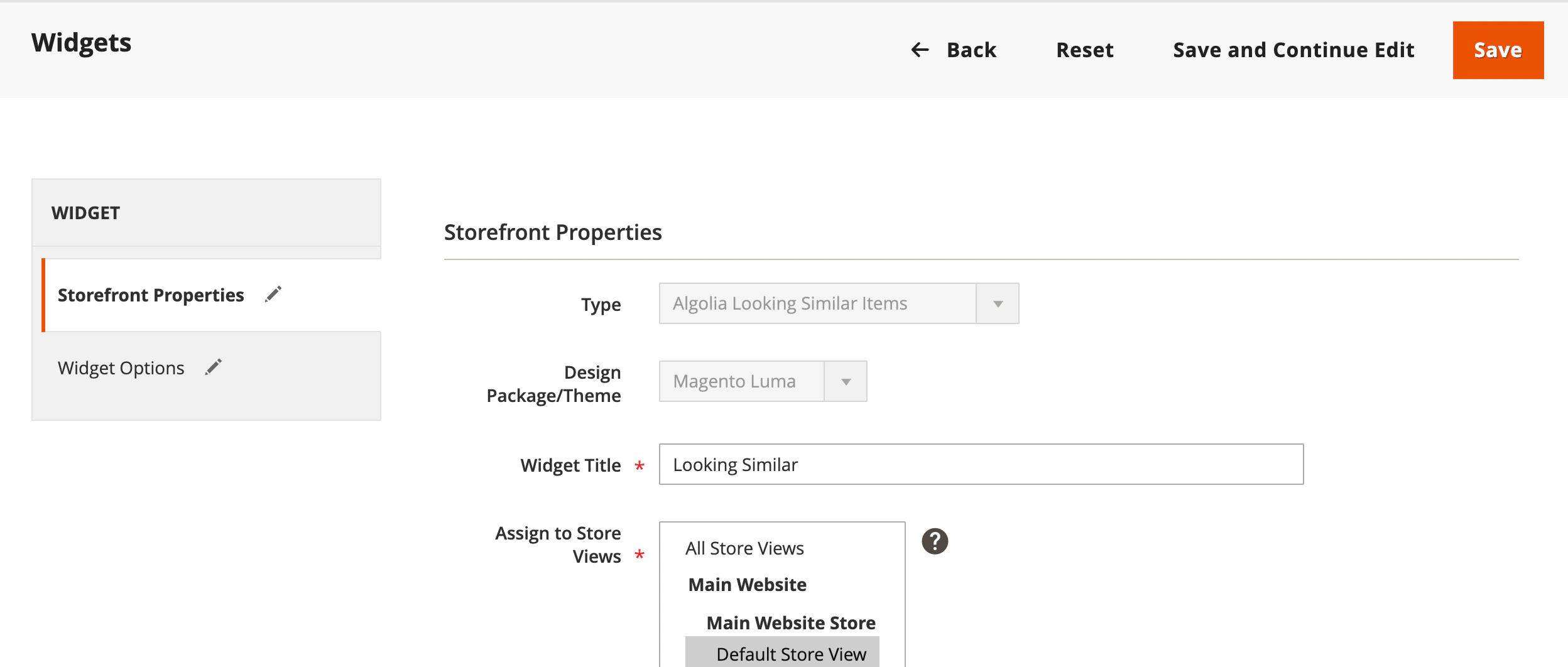
- Number of Looking Similar Items. Select the number of similar-looking items you want to show in the widget. Default is 6.
- Product IDs (required). Enter product IDs (separated by commas).
Change the layout of Algolia Recommend models
Frequently bought together, Related items and Trending items
Override the fileview/frontend/web/js/template/recommend/products.js from the original extension.
Add fallback recommendation
Fallback recommendations appear when the Algolia Recommend model doesn’t return any recommendations. This can happen when a product doesn’t have enough events. You can show fallback recommendations withfallbackParameters and fallbackComponent.
To add fallback recommendations, override the file view/frontend/web/js/recommend.js from the original extension.
The fallbackParameters for each model’s requests object has search parameters.
Use these as an alternative when no recommendations are available.
Add fallbackParameters to the following files as needed:
For example:
JavaScript
fallbackComponent for rendering when the model doesn’t return any recommendations. Add fallbackComponent to the following files as needed:
For example:
JavaScript
Customize styles
To customize the style of the recommendations, updateview/frontend/web/css/recommend.css.