

Enable Shared Catalogs
- In your store’s Admin, go to Stores > Settings > Configuration > General > B2B Features.
- Set Enable Company to Yes.
- Set Enable Shared Catalog to Yes.
catalog_permissions attribute to product and category .
Enabling Shared Catalogs increases your record size.
The
price attribute grows the most.
If you have complex category permissions or many shared catalogs,
check the impact on your product indices first.Customer groups
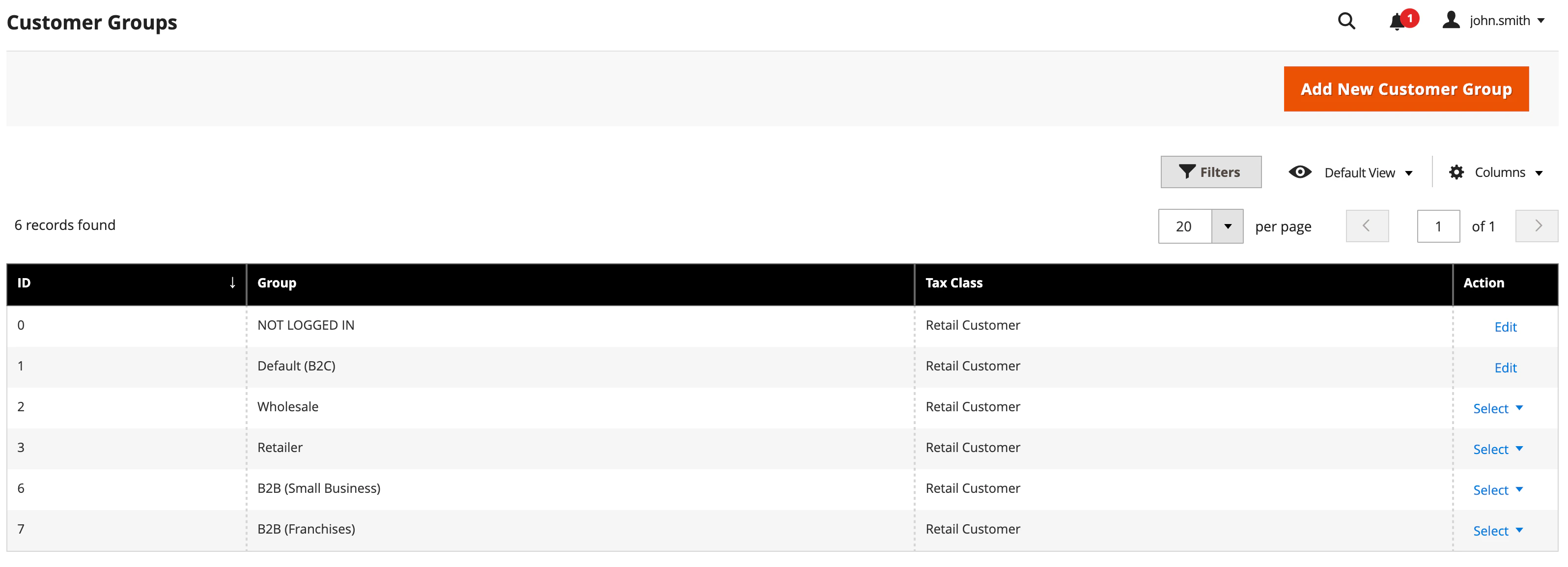
Adobe Commerce and Magento Open Source create a customer group for each shared catalog. This example creates two shared catalogs: one for small businesses and one for franchises.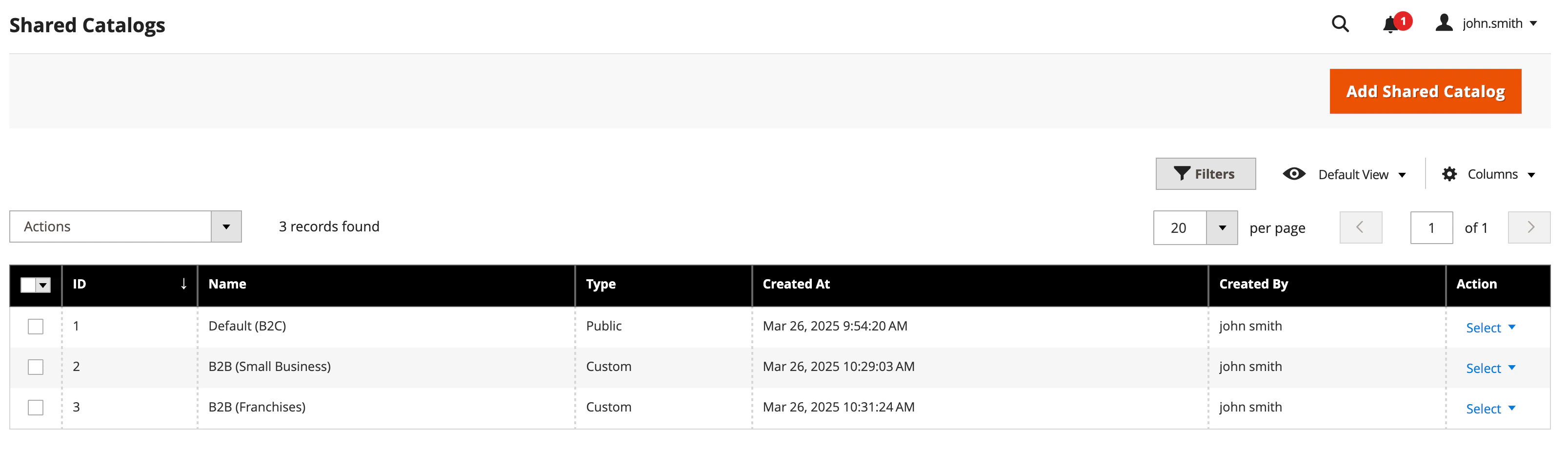
Companies
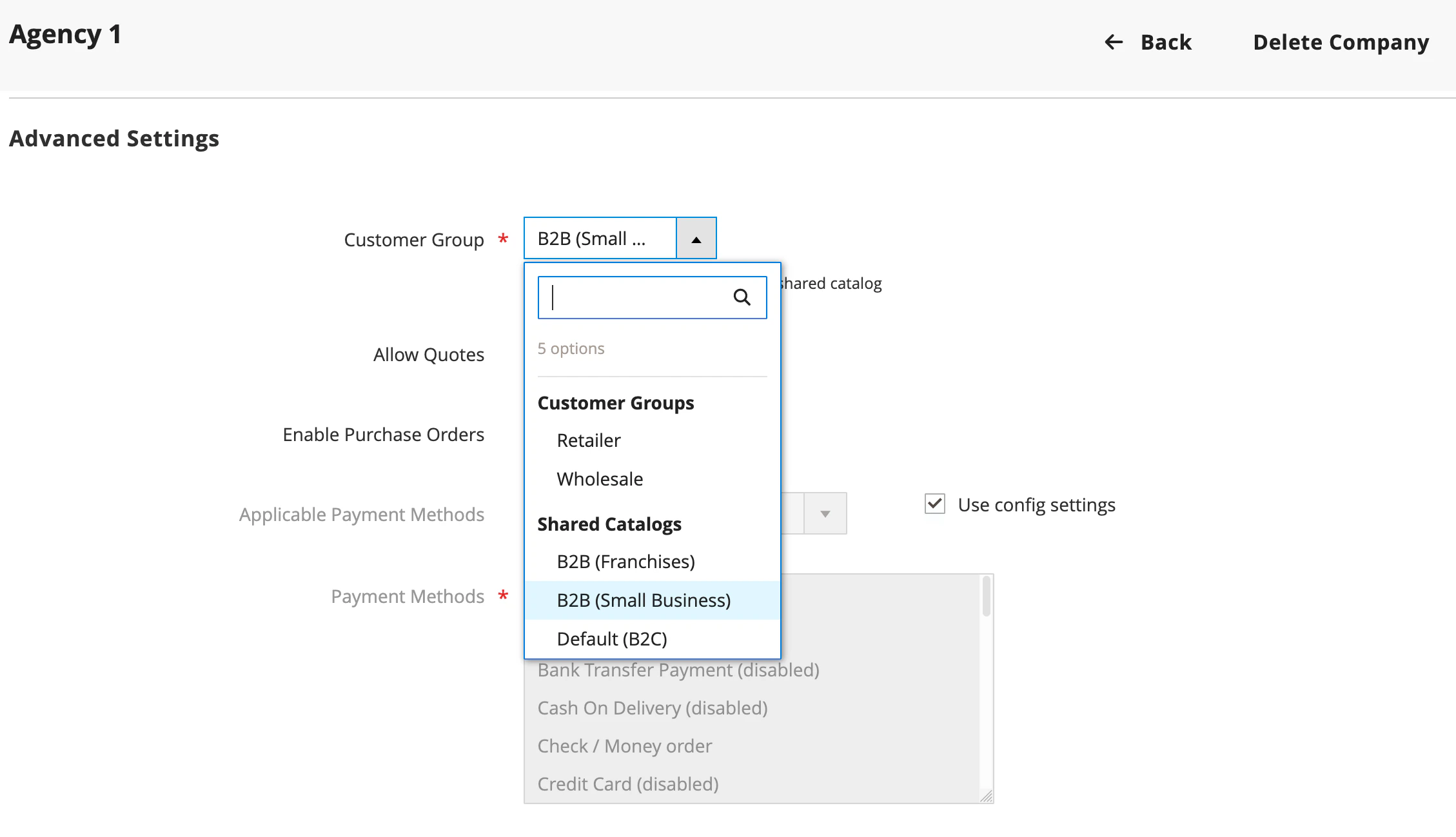
Adobe’s B2B features include companies. Use companies to link shared catalogs to a group of users. To link a company’s users to its shared catalog:- On the company page in your Admin, go to Advanced Settings.
- Link a shared catalog to the company.
Algolia indexing with Shared Catalogs enabled
Each customer group generates a replica for product indices. The number of replicas per customer group depends on your sorting options.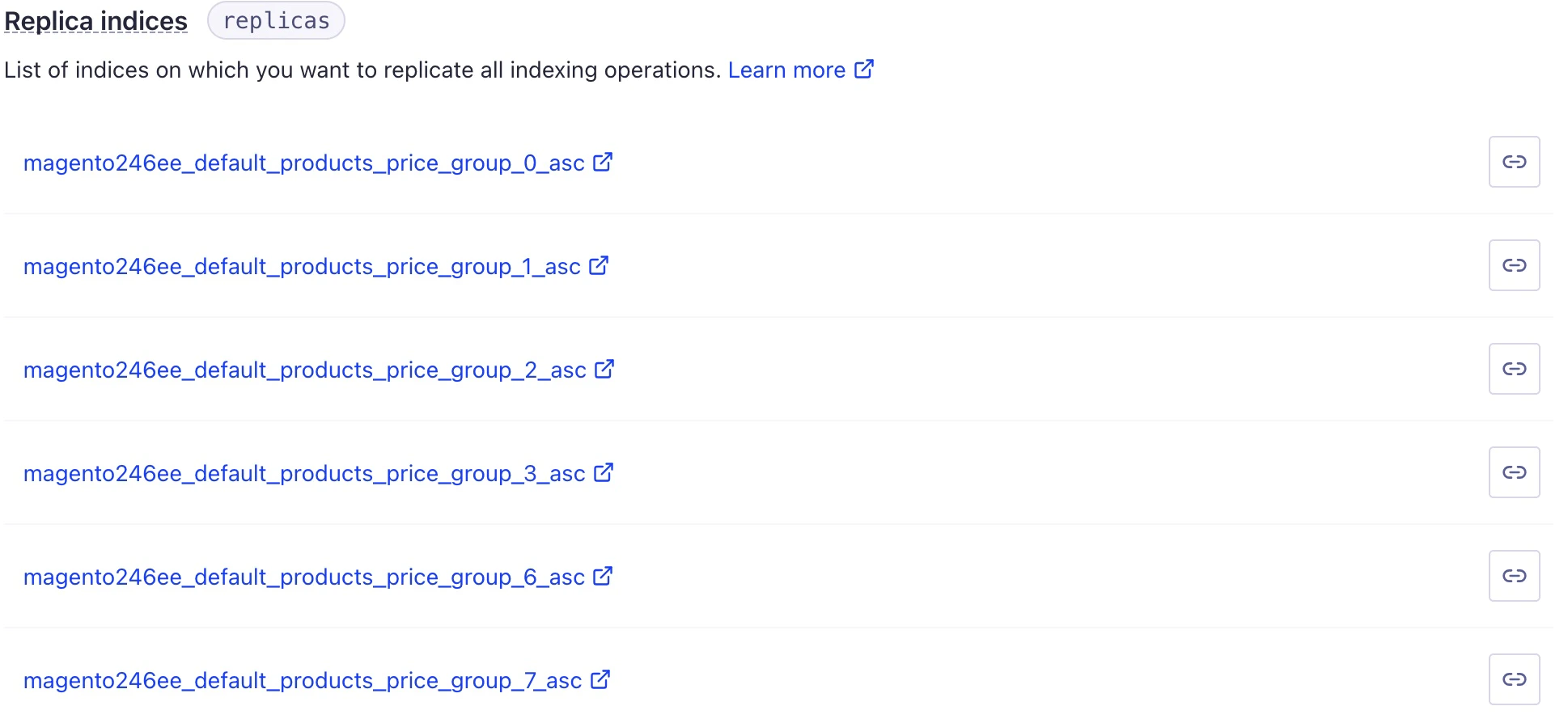
How Shared Catalogs handle pricing
Customer group replicas sort shared catalog prices, just like other replicas. A shared catalog’s custom price also applies to its customer group. The price applies to the group’s replicas too. This follows the Adobe Commerce and Magento Open Source group pricing feature.Product visibility with Shared Catalogs
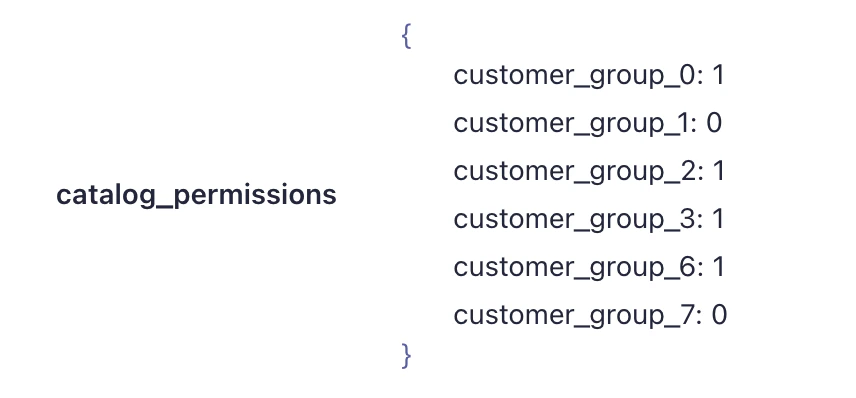
Algolia’s extension adds thecatalog_permissions attribute to product and category records.
This attribute assigns a boolean value to each customer group.
The value determines if the item is visible on the frontend.
Manage these permissions in your Admin under Catalog > Shared Catalogs.
If you add, edit, or delete a shared catalog, run a full reindex for products and categories.
Default catalog permissions
Products and categories outside a shared catalog use your Category Permissions settings. These settings control visibility.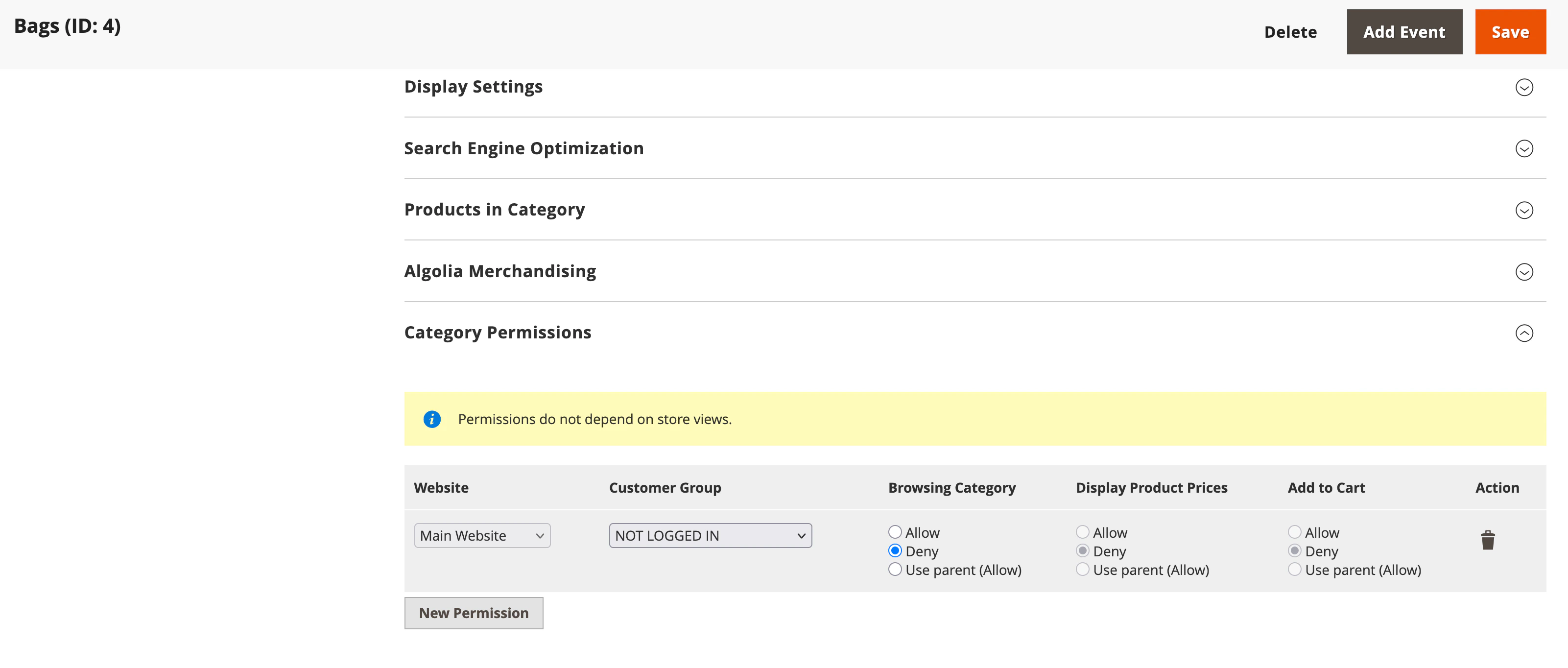
catalog_permissions attribute,
use update attribute data backend events.