1. Go to the Index page in the Algolia dashboard.
2. Select your index.
3. Select the Browse tab.
4. Start typing characters to see the matching results.
5. Use facets to filter the results. The facets on the left are all the facets you have configured. That includes filters and facets that users can select in the UI on your website, and back-end filters, that are automatically applied for specific queries. For example, you might apply a category filter “sci-fi” when users search for “Dune” without the user selecting a filter in the UI. 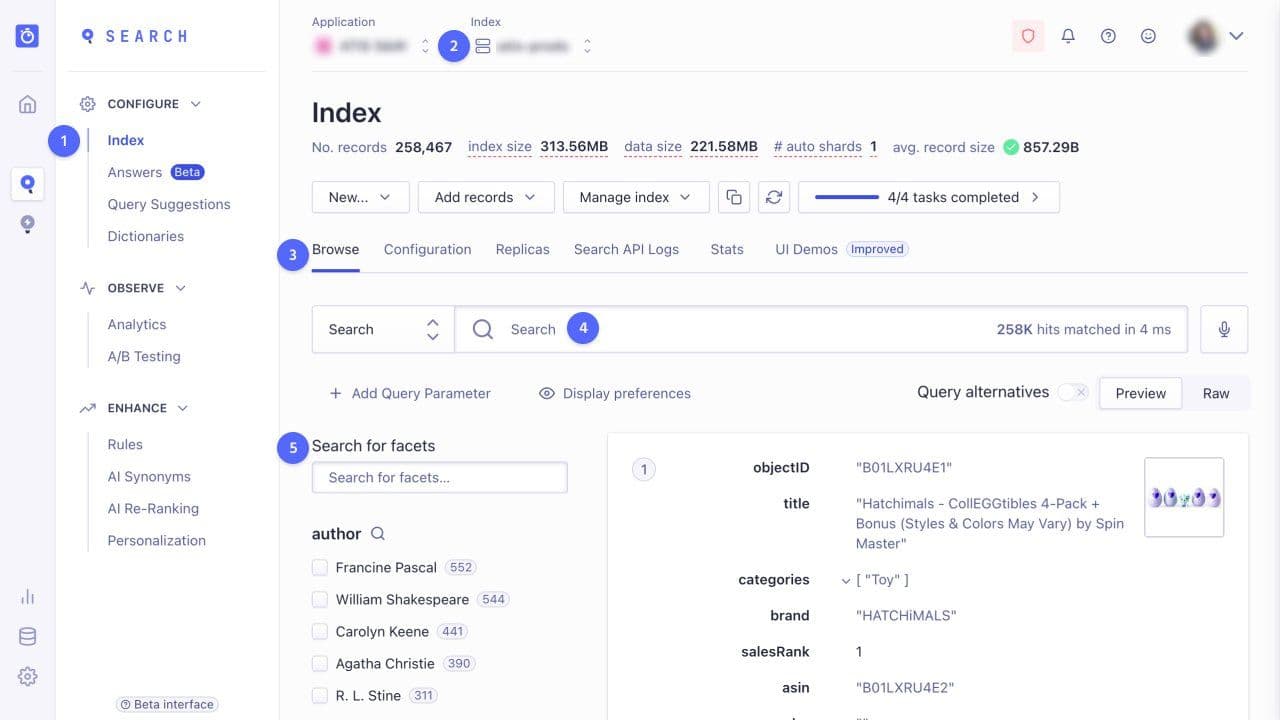
6. Click Add Query Parameter to search the index with applied query parameters. 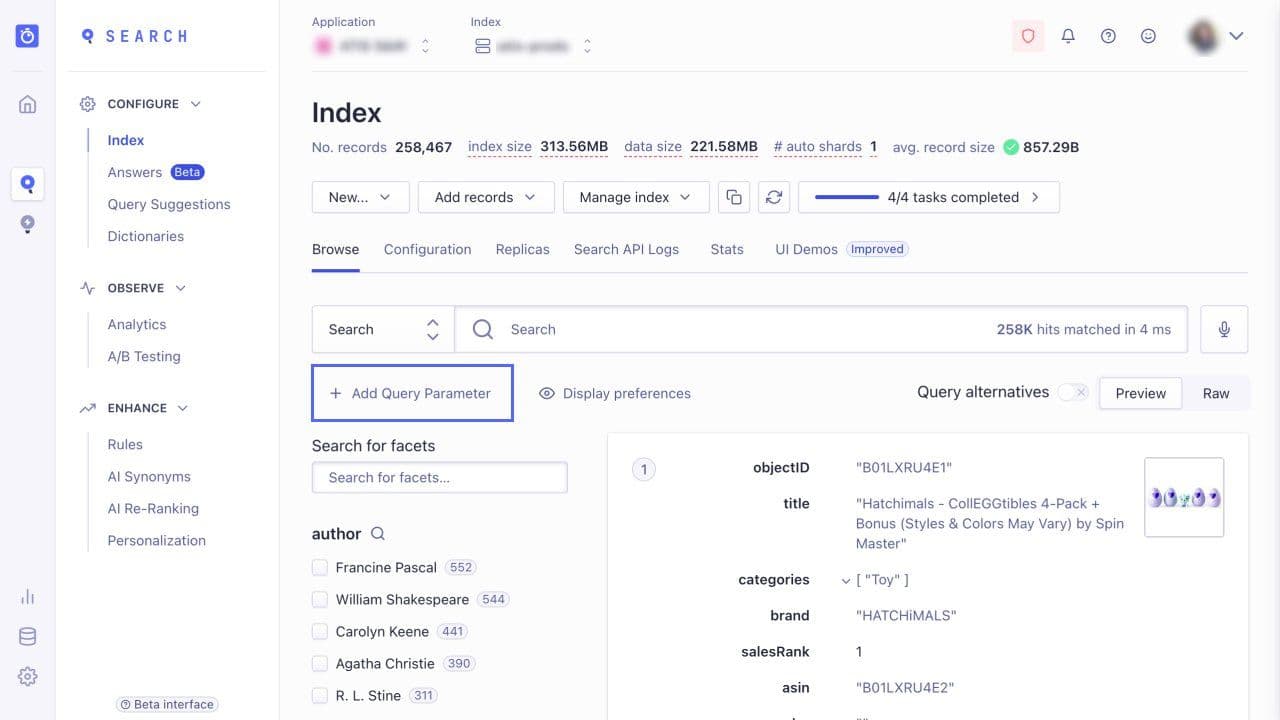
7. In the Advanced Search dialog, you can select any parameter you want to test.
- Filters—add tag filters, for example, a
premium filter to only show products in that segment; facet filters, for example, color:red to only show red products; or filter by numerical condition, for example, price<20 .
- Search—change typo-tolerance settings, searchable attributes, Rules, Rules contexts, or synonyms.
- Personalization—Enable personalization, select a user token (identifier), and test the different search results for different users.
- Distinct—Enable the distinct or grouping feature to test the impact on the search results. There are three use cases:
- Item variations—any item with variations only shows once in the search results. For example, a t-shirt that comes in five different colors, only shows once and the variations are accessible from the product details.
- Large records—you break up a large record into smaller sub-records. If the search matches multiple sub-records, only the most relevant is shown in the search results.
- Grouping by attributes—you group records by an attribute.
8. Optional: Geo search—if you implemented geo search, you can test the filtering by geographical location.
9. Custom—Apply custom query parameters (requires coding).
10. To check, why a search result ranks at a specific position, hover over the ? icon.



.webp)


.jpg)










.svg)

