In this blog, I’ll share how to diagnose search failures, establish a repeatable benchmark, and improve indexing, ranking, and result presentation on documentation, knowledge base, and support sites.
Search on content-heavy sites serves users with different goals. Some users know the exact API method, error code, command, or page they need. Others know only the task they want to complete or the concept they want to understand.
Unlike ecommerce search, these sites rarely have one business outcome such as a purchase. "Good search" means that relevant content can be found, the best results appear near the top, and users can distinguish between similar versions, frameworks, product areas, and content types.
Algolia Search Analytics can show which queries people enter, which queries return no results, and which results people select. However, low traffic content may not generate enough searches or clicks to tell you whether search is working. Use analytics to identify real user demand, then test search quality directly with representative queries and expected results.
Use this workflow:
Reproduce the problem
Describe the visible symptoms
Identify the user’s intent
Create a representative golden set
Fix the relevant issue
Run the test again.
Before you start
This blog post assumes that you can:
Access the relevant index, run a query and inspect its results in the Algolia dashboard
Inspect individual records and index settings
Identify how content reaches the index, such as through a crawler, connector, or custom indexing process
Algolia Search Analytics and click events, if captured, provide useful evidence, but they aren’t required to use the diagnostic workflow outlined in this blog post.
Diagnose a failing query
Before troubleshooting the live search interface, run the same query in the Algolia dashboard using the same index, filters, and search parameters. Compare the returned records and their order, not just how the results are displayed.
If the dashboard and live interface return different results, first verify the index, query, filters, and search parameters sent by the live integration. If they return the same results, use the following table to describe the visible symptom and identify where to investigate first.
Describe only what you observe, not the suspected cause. For example, “the page isn’t indexed” is a diagnosis. “A query returns no results” is a symptom.
Symptom
Checks
Start with
A query returns no results
Reproduce the query in the dashboard. Check whether the record exists (by URL or objectID). If it exists, inspect its searchable attributes and filters. For methods, parameters, commands, and error codes, confirm that the exact identifier and a human-readable form are searchable.
Results contain the query words but don’t answer the user’s task or concept
Review the page title, headings, description, and body for task-oriented or explanatory language. Determine whether the answer is fragmented across several pages.
The expected result appears but ranks below broader or less useful results
Compare the expected record with the higher-ranking records. Inspect the title, description, metadata, body content, searchable attribute order, and ranking settings.
Several results from the same page crowd the results
Check whether section records share a stable canonical page URL. Test grouping with distinct and confirm that it doesn't hide useful section-level results.
Users search with different vocabulary from the terminology in the content
Compare common query terms with the language used in the relevant records. Update the content when the user’s term is clearer or more accurate. Add a synonym only when the two terms genuinely refer to the same concept.
A common navigational query has a clear destination, but that page isn't first
Confirm through analytics or user feedback that the query has a stable intended destination. Use an Algolia index rule to promote that page, then test related queries.
The symptom tells you where the failure appears. The user’s intent tells you what a successful result should look like. After reproducing the problem and finding the closest symptom, identify the query by intent.
Need help diagnosing an issue? Use Algolia AI Assist to review your configuration and troubleshoot problems in your Algolia implementation.
Identify the user's intent
Two queries can produce the same visible symptom but require different fixes. For example, a result at rank five might be acceptable for a broad concept query but less desirable for an exact API lookup.
Classify each weak query by the result the user expects:
Query intent
User goal
Common failure
Likely fix
Exact lookup
“Take me to this known page.”
The page exists but ranks below broader pages.
Improve metadata and searchable attribute order.
Navigational query
“Take me to the canonical page for this feature or area.”
Many pages mention the same term, or ranking doesn’t show the correct destination.
Strengthen the preferred page’s metadata. Use an Algolia Rule only when analytics or user feedback shows a stable destination.
Task query
“Help me do something.”
Results contain the words but don’t match the task.
Improve titles, descriptions, headings, and task-oriented terms.
Concept query
“Help me understand this.”
Results are fragmented or too literal.
Improve descriptions, result grouping, snippets, and content coverage.
Broad query
“I don’t know what I need yet.”
Several results are valid, but hard to compare.
Add facets, badges, breadcrumbs, and clearer descriptions.
Version or variant query
“Show me this version or framework.”
Current and legacy pages compete, or React pages outrank JavaScript pages.
Add version or framework metadata, facets, badges, and optional filter boosts.
Once you know the symptom and the user’s intent, record the query in a diagnostic log. If the query represents meaningful user demand or fills a coverage gap, add it to your golden set (see the next section).
Build a representative golden set before changing settings
A golden set is a deliberately selected benchmark of important queries and their expected results. It shouldn’t be a running list of every query that has ever failed.
Add a query only when it represents meaningful demand or fills an identified coverage gap.
Demand-based queries: use Algolia Search Analytics to identify real demand. Include popular queries, popular or otherwise high-impact no-result queries that should succeed, high-volume queries with low engagement, and recurring questions reported by internal teams.
Coverage-based queries: searches that exercise important content types and metadata dimensions, such as framework, version, and product area.
Keep isolated failures in the diagnostic log unless they meet one of these criteria.
Start with about 50 queries to reveal patterns without making the set hard to maintain. Part of a golden set might look like this:
The expected result doesn’t always need to be a single URL. For a broad concept query, several pages may be valid. For an exact lookup query, the expected result is usually one page.
Track a few useful metrics
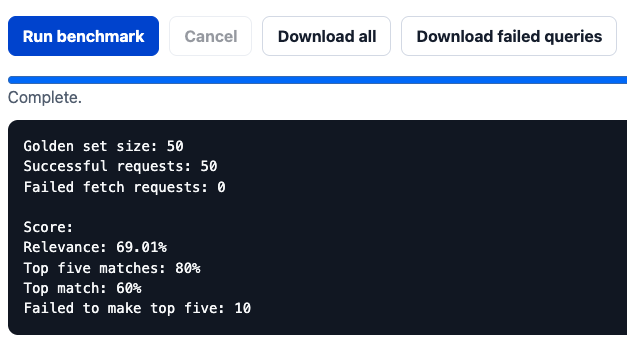
You don’t need a complicated scoring model to start. These metrics should be enough.
Metric
What it tells you
Relevance
How high expected results appear across the set. This helps you see gradual changes.
Top five matches
How often expected results appear near the top. This matters for task and concept queries, where users may accept several good options
Top match
How often the expected result is first. This matters for exact lookup and navigational queries
Use the test to establish a baseline. Then run the same test after each indexing, record restructure, ranking, synonym, index rule, or UI change.
The goal isn’t to get a perfect score. The goal is to avoid guessing whether changes might help or hurt search.
How to calculate these metrics
For each golden set query, use the rank of the first expected URL that appears in the results. If no expected URL appears, use a score of 0.
Rank score = 1 / rank of the first expected result
Relevance = sum of rank scores / number of queries in the golden set
Top five matches = queries where an expected result appears from rank 1 to 5 / number of queries in the golden set
Top match = queries where an expected result appears at rank 1 / number of queries in the golden set
Fix the right layer
Fix one failure pattern at a time. Use the symptom to identify where the problem appears and the query intent to determine the expected outcome. Then make the smallest change at the earliest applicable layer:
The data sent to Algolia
Record structure and ranking
Query-time behavior
Results presentation
After each change, run the golden set again. Keep the change only if it improves the target queries without reducing the overall baseline.
Data you send to Algolia
Search quality depends on what you send to Algolia. If the right content isn’t indexed, or the records contain repeated page elements, ranking changes can only do so much.
Check this layer when:
An expected page is missing
Repeated content appears in results
Framework, version, or product-area metadata is missing
Facet values are inconsistent
API methods, parameters, commands, or error codes can’t be found
A record should give Algolia enough information to retrieve the right content, rank similar results, and help users understand what each result represents. This is especially important for text-heavy sites, where many pages share similar words.
Record structure determines what you can tune later. Send only title and body text, and you lose important levers: version ranking, section grouping, framework filters, and useful UI context.
Example record and settings for a docs page
A good record doesn't need to be complicated, but each attribute should have a job. Some attributes help Algolia match the query. Some help rank similar records. Some help group long pages. Some help users filter or understand the result.
For example, a section record for a JavaScript API reference page might look like this:
{

  "objectID": "instantsearch-js-configure-widget-overview",

  "url": "/doc/api-reference/widgets/configure/js/#about-this-widget",

  "canonical_url": "/doc/api-reference/widgets/configure/js/",

  "title": "configure widget",

  "description": "Apply search parameters to an InstantSearch.js search.",

  "content_type": "API reference",

  "product_area": "InstantSearch",

  "framework": "JavaScript",

  "version": "current",

  "is_current": 1,

  "hierarchy": {

    "lvl1": "Widgets",

    "lvl2": "configure"

  },

  "lookup_text": "configure widget instantsearch javascript search parameters api reference current",

  "body": "The configure widget lets you provide raw search parameters to the Algolia search helper."

}
This record gives you more signals than title and body alone.
The title, hierarchy, lookup_text, description, and body attributes help with matching.
The is_current attribute helps prefer current content when two records are otherwise similar.
The canonical_url attribute lets you group section records from the same page.
The content_type, framework, version, and product_area attributes can power facets, badges, filters, and result context in the UI.
The matching, ranking, grouping, and faceting settings for such a record might look like this:
Search high-signal attributes before long body text
Treat hierarchy levels as equally important
Prefer current content as a broad ranking signal rather than a one-query fix
Groups section records by canonical page URL, so one long page doesn't crowd out the rest of the results.
Exposes useful facets for broad queries, such as content type, framework, product area, and version.
Use this as a pattern, not a universal solution. The right attributes depend on your content. The important point is to avoid making one giant text field do everything.
When the right record ranks too low
If a query combines signals that are split across the record, the preferred page may lose to a broader page.
For example, configure instantsearch javascript might combine a widget name, product area, and framework. If those terms appear in separate weakly weighted fields, a broad guide can outrank the specific reference page.
Long pages often become several records: one for the page, one for each H2, and one for each H3. That can help users land on the right section, but it can also crowd the results with several similar records from the same page.
Use distinct when one strong result per page is more useful than several deep links.
Test whether grouping with distinct hides useful section-level results.
When versions compete
Product versions of a page may both be good text matches but text relevance alone may not express the preference users want.
What to do:
Add version metadata as an attribute.
Use a normalized custom ranking attribute such as is_current or version_rank to prefer current content.
Don’t use custom ranking to fix one-off query problems.
When users need to narrow broad results
Facets help users narrow broad or ambiguous result sets. They work best when they match real decisions users make.
Useful facets for docs and support sites often include:
Facet
Example facet values
Content type
Guide, reference, API method, release note, or support article
Version
Current or legacy content
Framework
JavaScript, React, Android, iOS
Product area
The aspect of the product the page covers
Facets don’t replace good ranking. The first results should still be useful before users narrow them. Use facets as a recovery path when several result types are valid.
Use Algolia Rules when analytics or user feedback shows a repeated query with a clear destination.
Good candidates for rules include:
Product names or renamed features
Repeated support queries with one best destination
Queries where a preferred page should appear first
Rules are less useful for broad concept queries where several pages could satisfy the user. For those queries, improve records, descriptions, facets, and UI context instead.
When users use different vocabulary
Use synonyms when users search with one term and your site uses another term for the same concept.
Don’t use synonyms as the first fix for weak records. If users consistently use a clearer or more accurate term, fix the record by updating the content or metadata.
Add a synonym only when the terms genuinely refer to the same concept. Then test both the intended query and broader related queries. A synonym that helps one query but hurts many others isn’t helping.
When a query names a framework, version, or product area
Some queries include a clear signal, such as a framework, product area, or version. For example:
routing instantsearch react
configure javascript
shopify indexing
legacy api client
Use optional filters to boost matching records without excluding useful general content.
Use such boosts carefully:
Boost only reliable metadata.
Avoid boosts for short or unclear terms.
Test with the golden set before and after each change.
Confirm your ranking formula still includes the Filters criterion.
Results presentation
After your records are clean and structured, tune the experience around them.
When results are relevant but hard to choose
A relevant result can still be hard to choose. This is common on large sites with repeated titles, generated pages, versions, frameworks, and variants of similar pages.
Expose metadata that helps users see:
Content type, including visual badges
Version
Framework
Product area
Site structure
Page descriptions
Page snippets
Highlighting of search query phrases
A result should answer three questions before users click:
What is this result?
Why did it match?
Is it the right version, framework, product area, or content type?
Keyword search is powerful for exact lookups. If users search for an API method, setting, or error code, they usually want the right page, not a generated explanation.
Start with the index. Tune ranking next. Then use AI-assisted search for explanatory and task-oriented questions that span several pages or concepts. To improve keyword search quality, build a golden set, run a baseline, and fix one failure class at a time.
These features work best when they refine a good index. They have less effect when they attempt to make up for missing content or weak records.
Keep search quality from drifting
Search quality isn’t fixed after one good tuning pass. Content changes, URLs move, user behavior alters, SDK versions change, pages are deleted, and new pages enter the index.
The same measurement process you used to improve search should become part of how you maintain it. Review search behavior regularly. The golden set keeps the benchmark grounded in real user demand. A review loop helps you catch drift before you start guessing again.
Keep the golden set representative
A golden set helps you measure search quality, but it can become misleading if it contains only hand-picked examples. The score can improve while real user searches stay the same or get worse.
Keep the set balanced by including:
Popular searches
No-result searches that should have results
Known bad queries
Important pages
Framework, version, and product-area queries
Support or sales questions that recur
Review it regularly (say, quarterly). Remove stale queries, update expected URLs when content moves, and add new entries when analytics or user feedback reveals new patterns.
Use a light review loop
Use a simple review loop so search quality checks happen routinely, not only after users report problems.
Cadence
Checks
Monthly
Review popular searches, no-result searches, low-engagement searches, and the golden set score.
Quarterly
Review golden set coverage, failed queries, Rules, synonyms, facet values, and indexing transformations.
After every indexing or settings change
Run the golden set before and after the change. Spot-check important query intents.
Conclusion
Improving search quality requires a repeatable process:
Reproduce the problem
Describe the symptom
Identify the user’s intent
Test against a representative golden set
Fix the layer responsible for the failure.
Continue using this process as your content, users, and search implementation change. Keep the golden set representative, review analytics and user feedback, and rerun your tests after changes to your content, indexing process, configuration, or search interface.
As keyword search becomes more reliable, use the same evidence to identify where AI-assisted search can help with broader task and concept queries that span several pages.




.webp)















%20(2).svg)