Which episode was that? Making your favorite TV show searchable
Listen to this blog as a podcast:
Searchable video: Finding those perfect scenes
Most of us have memorable moments we love from our favorite TV shows. But sifting through hours of video to locate those scenes can be a challenge. In shows with multiple seasons and hundreds of episodes, it’s often impossible to remember where that hilarious one-liner or heartwarming scene appeared.
Thankfully, clips of the most iconic moments from blockbuster shows often show up on YouTube for repeated enjoyment. But what about less popular scenes?
Video as a searchable format: From problem to potential
It’s not just a problem with television shows. Searching for specific video content is an issue with any specialized video archive. And with over 20 million videos uploaded to Youtube every day, our appetite for video is growing.
Until recently, locating a specific name, fact, or detail in hours of training video, news clips, or taped lectures required manually scrolling through every clip or segment to find. This process can be a tedious waste of time.
But now, Algolia’s search platform and open source tools can make your favorite TV show – or any video archive – searchable. This method not only boosts the usefulness of video, but exceeds expectations by making navigating video content fast, fluid, and enjoyable.
Transform video content into searchable data
My video search method actually searches the text of spoken dialogue. Accurate and lightning-fast text search powered by Algolia runs in the background. What the user sees are the characters and moments from their favorite shows, supported by thumbnails and looping video.
This blog post shows you how to set this up. For my demonstration, I used the popular French series “Bref,” known for its fast-paced and funny dialogue across each of its 82 short (~2-minute) episodes.
I built “Bref Search” in six steps following this pipeline:
You can adapt the six steps I used to build your own video search site.
Download videos
I used the Youtube Downloader command line tool (YT-DLP) to download the set of videos I'm interested in. I then input a playlist ID to download all the videos as .mp4 files.
Extract audio
I used FFmpeg to extract the audio stream from those files as .mp3 files.
Transcribe dialogue
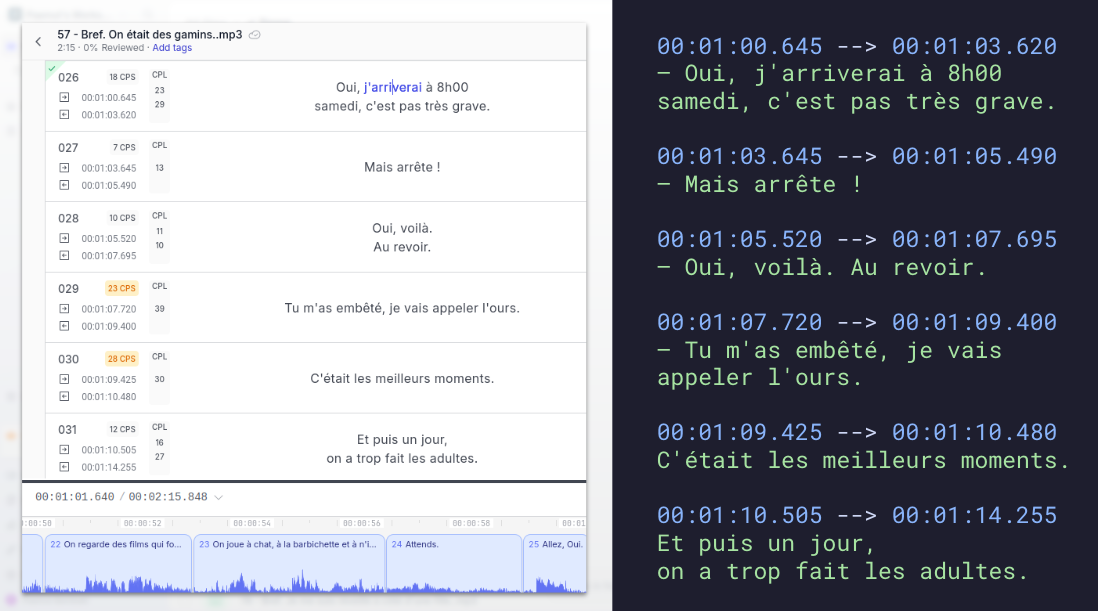
I used the happyscribe AI speech-to-text transcription tool to extract the dialogue as .vtt files (video text tracks). These text files generate subtitles for the spoken text, along with vital metadata like dialogue timestamps.
Generate records
I generated records containing video and dialogue text elements and pushed those to Algolia.
Create thumbnails and previews
I generated supporting search media using FFmpeg again to create static thumbnails (.png) and animated previews (.webm) from the video episodes.
Build your website
I built the website using NextJS, hosted on Vercel.
How this works
Searchable video is broken down into a series of records in your Algolia index containing two elements:
Video element: video ID, title, order in the playlist, duration, and number of views.
Subtitle element: the text subtitle and number of seconds from the beginning of the episode
A short show like Bref contains about 50 dialogue elements per episode, amounting to 4000 total records for the entire season.
With information from the .vtt files, each Algolia record is structured to link its dialogue text to the precise place in the video stream where it appears.
Let’s say a user wants to find instances of “au revoir” in Bref. This record indicates that there’s an instance of “au revoir” spoken at second 65 in episode #57.
I added a rich UI for the user by using thumbnails and previews delivered to the user as part of the search results.
To do this, FFmpeg extracts one frame at second 65 from this specific video and saves it as a .png file. FFmpeg also retrieves a two-second looping video.
The same logic applies to every line of dialogue stored in each record, ensuring that any search result has a static thumbnail associated on display and an animated preview video on mouse hover.
Search relevance: Configuring the Algolia index using popularity rankings
A few additional steps are necessary to manage result rankings. In a French television series, there might be several instances of “au revoir”. The index needs to be configured so that you’re presenting search results in an order that makes sense for your users, such as ranking according to popularity.
Youtube Downloader can generate a large metadata.json file that you can use for this purpose. It provides Youtube metadata for every video in your set, including number of views, comments, and likes.
Here, I define popularity by number of views. If there are several matches inside of the same episode, I decided to only display the most relevant match of that episode. Algolia’s “Distinct” feature sets up an attribute for a distinct video ID. If multiple results share the same video ID, Algolia will return only one from that episode.
To do that, I referred to the 100-line heatmap array included in the metadata.json file from Youtube Downloader. Each line represents a video segment with start and end times, and a “heat” value between 0 and 1. The higher the value, the more frequently that segment has been played in that specific video. I used that value to find the most relevant chunk to display for that specific episode.
Fast video search: Tips for frontend optimization
Fast image and video retrieval is critical with video search so your choice of Content Delivery Network (CDN) is important. Bref Search uses Cloudinary, an impressive image CDN that converts and compresses images and videos on the fly to deliver the best possible versions of thumbnails and video previews to users.
Thumbnail image retrieval and optimization
As soon as Algolia returns a search result, Bref Search uses a Low Quality Image Placeholder (LQIP) to save a tiny version of the final thumbnail. For the briefest time, the user sees a blurry image placeholder with main shapes and colors that’s replaced by the final thumbnail once it’s downloaded. It happens fast and the user always has something to see, leaving the impression that results are being loaded instantly. This LQIP is stored directly in the Algolia record, so it can be displayed as soon as the record is being retrieved.
Two-step animated preview retrieval
Another optimization for an enhanced UX is animated previews that play as soon as a user mouses over the search results. Similar to images with Cloudinary, video preview files need to be downloaded to play. Even on the fastest Internet connection, downloading assets always takes a bit of time and delay. I added a buffer technique so that this process appears seamless and instantaneous.
I created an area around the search hit that should start playing the video when it’s moused over. But around that, I added a second, larger and invisible buffer zone. When the user’s cursor enters the buffer zone, it’s a signal for Bref Search to start downloading the file. By the time the user’s cursor reaches the target zone, the file is downloaded and ready to play. Because preview files are so small, there’s usually sufficient time to download files for instant playback.
Enhance the user experience with searchable video
Under the hood, video search is essentially text search with fancy graphics on top. However, the search capability feels fresh when it happens instantaneously and is visually pleasing. With speech-to-text AI and other open source tools, it’s simple and straightforward to build first-class video search on Algolia. Your users will be wowed with the speed, accuracy, and accessibility of the video search results.
Gartner 2026 Magic Quadrant for Search and Product Discovery
A leader for the third consecutive year
Algolia is recognized as a Leader in the 2026 Gartner® Magic Quadrant™ for Search and Product Discovery as the market shifts toward AI-powered, agentic discovery.
Increased Operating Profit and Improved Efficiency
A Forrester Consulting study found Algolia delivered $3.1M NPV over three years, helping commerce teams improve relevance, automate merchandising, and grow revenue
IDC recognized Algolia as a leader in general-purpose knowledge discovery software, citing the growing role of search in AI-powered workflows and enterprise knowledge experiences
Algolia earned 12 medals across 12 categories in Paradigm B2B’s 2025 Enterprise Combine for Search and Discovery, with customers praising speed, transparency, analytics, and ease of use











 Other Types




%20(2).svg)