Looking for our logo?
Facet merchandising refers to changing the order of the facets and their values. First, you need to configure a baseline as part of your Relevance strategy. Then, you can set up Rules to modify the order, for example, pinning facets at the top.
For example, you can define, that the “brand” facet is shown first, followed by “product type”, “price”, and “customer rating”.
To define the order in which the facets are displayed, follow these steps:
For each facet, you can change the order of the facet values. You can pin one or more facet values, so that they’re always at the top of the list. For the remaining facet values, you can select if they should be sorted alphabetically, by count, or if they shouldn’t be displayed at all.
For example, the facet values for the facet “size” are ordered by count, while most users expect a fixed order: “XS, S, M, L, XL”.
To define the order in which the facet values are displayed, follow these steps:
For example, your analytics show that the brand “Apple” converts better than other brands. To increase conversions, you can pin the facet value “Apple” for the facet “brand” at the top of the list.
To pin facet values, follow these steps:
Adjust the facet ordering for a category
For example, in the category “Jeans” you use numerical facet values for the facet “size” (24, 25, 26, etc.). To specify the ordering of numerical facet values, follow these steps:
1. Go to the Rules section in the Algolia dashboard.
2. Select the index, for which you want to specify the facet order.
3. Click New Rule and select Visual Editor.

4. Click Choose category page.

5. If you haven’t configured any categories, click Configure category page and set your preferences.

6. Select a category that triggers this Rule.

7. Select Order facets. Click Add facet to display to add facets for the selected category. If you want to change the order, you can drag them up or down the list.

8. Review the Rule and click Publish.
9. Review and save your changes.
1. Go to the Rules section in the Algolia dashboard.
2. Select the index, for which you want to edit a Rule.
3. Select the Rule you want to edit, open the options menu on the right (three vertical dots), and select Edit rule.

4. Select the facet you want to edit and click the Edit icon.

5. Make your changes, for example, adjust the facet value ordering, click Apply, and save the edited Rule.

Recognized by IDC, Gartner, Forrester, and Paradigm B2B, Algolia helps enterprises turn search into a growth engine for AI-native experiences.
Algolia is recognized as a Leader in the 2026 Gartner® Magic Quadrant™ for Search and Product Discovery as the market shifts toward AI-powered, agentic discovery.
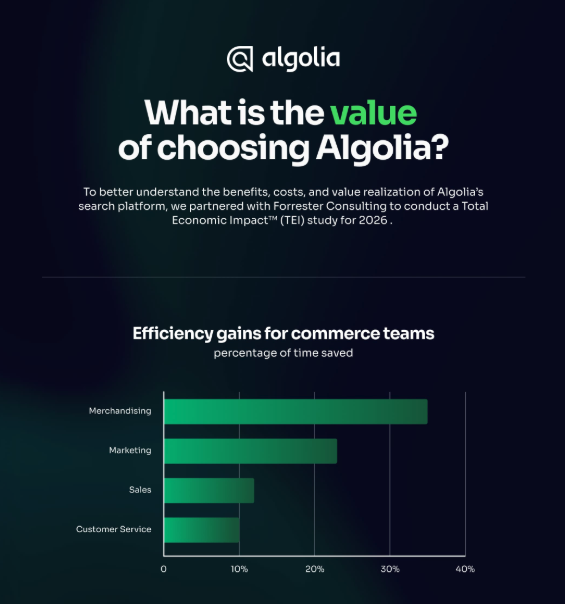
A Forrester Consulting study found Algolia delivered $3.1M NPV over three years, helping commerce teams improve relevance, automate merchandising, and grow revenue
IDC recognized Algolia as a leader in general-purpose knowledge discovery software, citing the growing role of search in AI-powered workflows and enterprise knowledge experiences
Algolia earned 12 medals across 12 categories in Paradigm B2B’s 2025 Enterprise Combine for Search and Discovery, with customers praising speed, transparency, analytics, and ease of use
Hi there 👋 Need assistance? Click here to allow functional cookies to launch our chat agent.
Thanks for visiting! 👋 I can help answer any questions about Algolia.
Hey! 👋 Got questions about pricing or plans?
Want to skip the form and book some time with our team right now?
Hey there! Would you like to book a meeting with our sales team now?
Thanks for visiting! 👋 I can help answer any questions about Algolia.