Hey there! I’m Jaden. I’m a technical writer here at Authors Collective. One of my projects these days is working on a tool for HVAC professionals to figure out how big of a heating or AC unit a particular house needs. It’s a complex calculation that depends on details about the house’s dimensions, the way the homeowner uses their thermostat, the climate in their area, and a ton of other datapoints, so it’s worth it for the pros to get software to do this for them.
But regardless of the exact purpose, every SaaS needs some of the same features. I developed my own SaaS starter repo to get off the ground with authentication, account management, billing, and some basic UI components and pages. A lot of that is managed with Supabase, a beloved tool that has become the default backend solution for developers of all types. I’ve been experimenting with vibe-coding too (that’s letting an LLM do the coding gruntwork, if you’re not familiar), and nearly every vibe coding platform is hardcoded to use Supabase for data storage.
With all that data though, my users will need a way to search through it intuitively. That’s why Algolia ends up a part of nearly every project I build. If you’re in a similar situation, keep this article bookmarked as a guide to add search in your SaaS project and keep your search index automatically in sync with your Supabase data.
Step 1: The Supabase connector
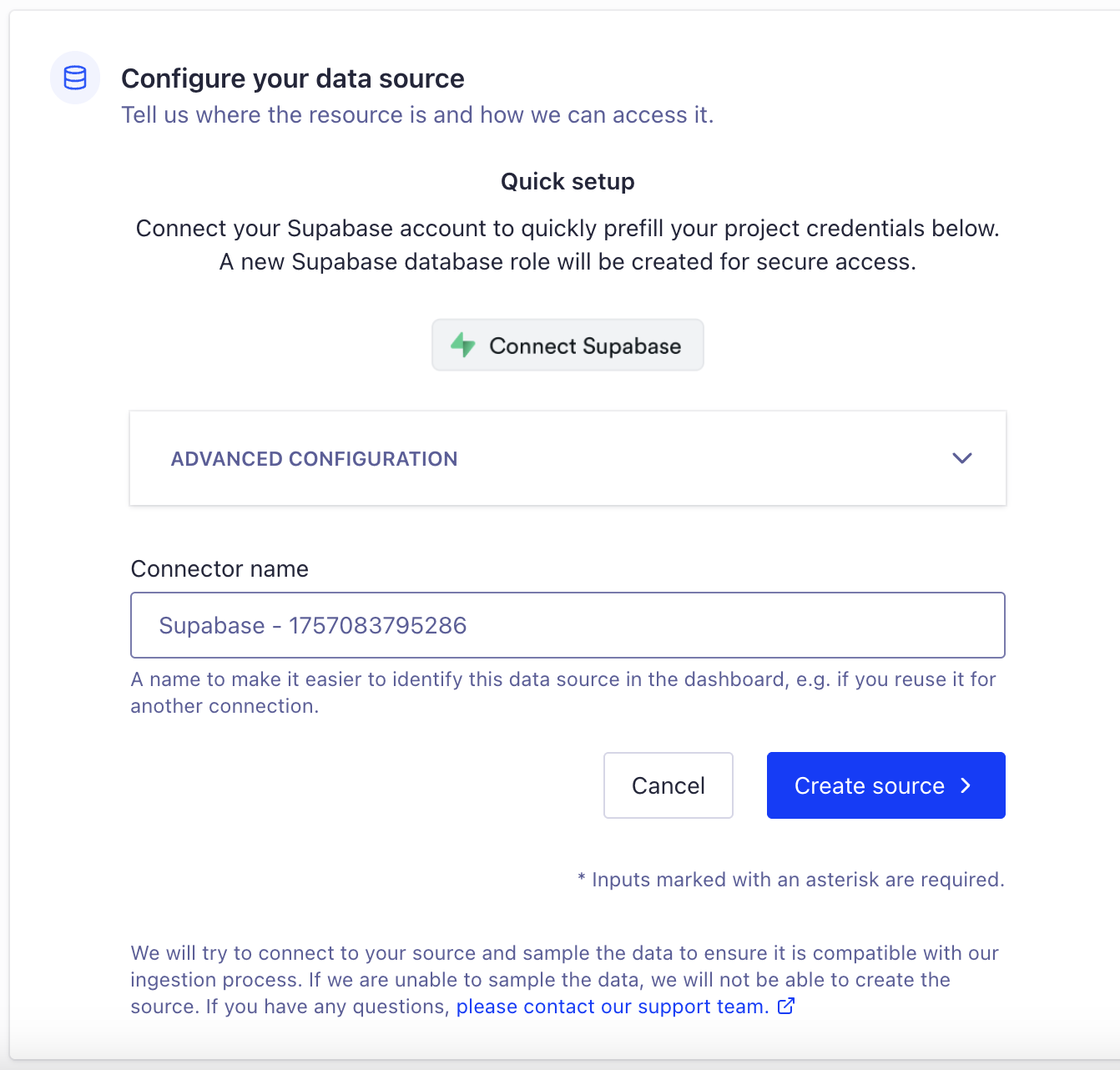
This part happens mostly automatically. When I’m making an Algolia index, I get the option to pipe in data from myriad sources, one of which is the Supabase Connector. When I select it, it shows me this window:
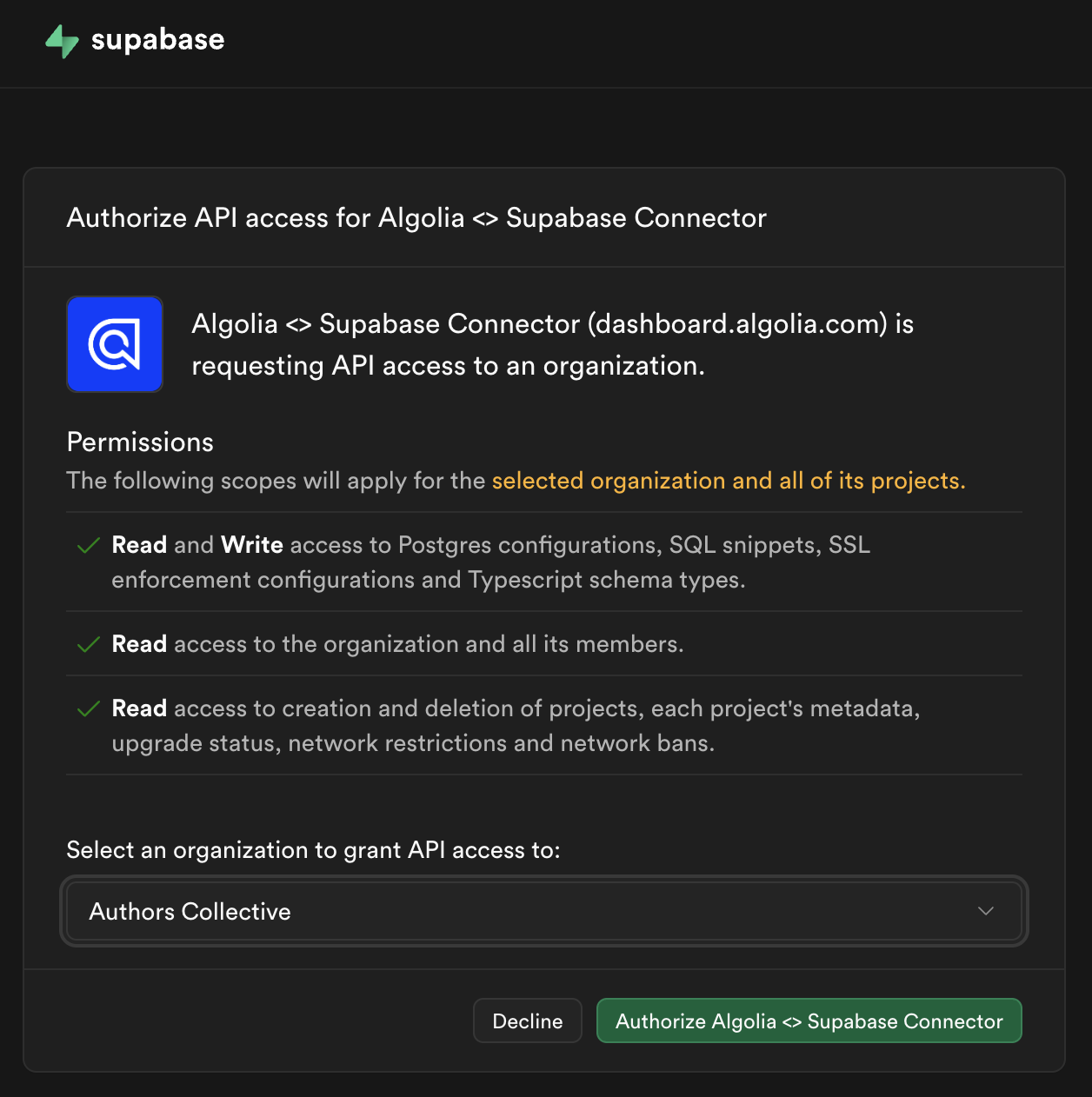
Clicking the Connect Supabase button takes me to Supabase’s rundown of the permissions I’m granting Algolia.
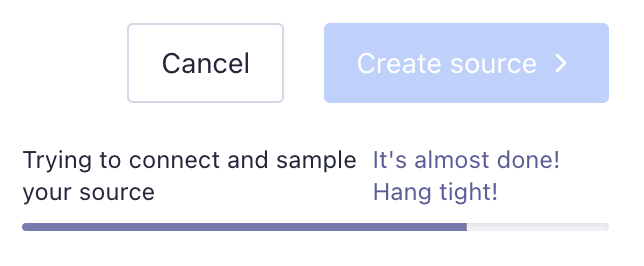
Once I click the green button and get redirected back to Algolia, the advanced config fields get autofilled so I don’t have to go rummaging for API keys. It’ll just hook up all the right data plumbing behind the scenes, and I never have to think about it.
There’s an option here to set some data transformations, which are super helpful in the long run. They’re not required, but setting one will be great for my use case.
Quick diversion: I’d like the users to be able to search in their dashboard through all the times they ran these calculations on homes. These users are HVAC professionals, so in their jargon they know these as “load calculations” and the homes they’re for as “projects”. In the search interface, I want to show them the address of each project, but right now that data is atomized into buildingStreet, buildingCity, buildingState, and buildingZip fields. Combining them all into one field will make the display process easier, plus it’ll let the users search using multiple components of the address, à la “Main St Eagleton”. I’m also keeping deleted records in the database by just setting the deletedAt field to a timestamp of when the project was deleted, but we don’t want those to actually be searchable, so they shouldn’t end up in our Algolia index.
So here are the objectives of our transformation function:
If the deletedAt field is not null, then remove the record by returning undefined
Remove the address components and coalesce all but the ZIP code back into one long address string
Put the coordinates into the _geoloc format Algolia uses to run geographic searches
Take the id field out of the record (I came back for this optimization — more on this later)
This is the transformation function I wrote in JavaScript, though there’s an option to do this without code:
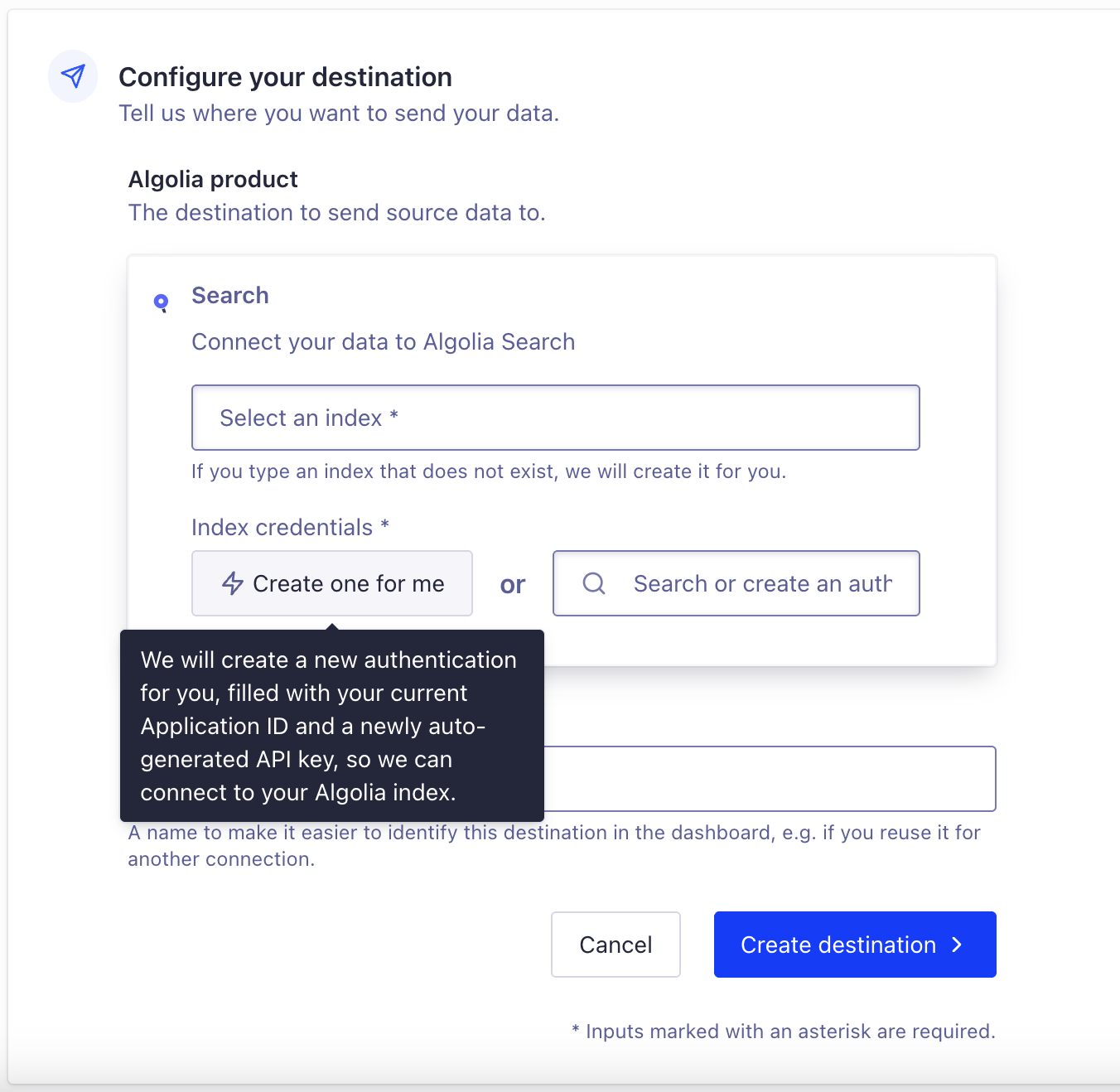
Next, we’ll tell the connector where to pump our Supabase data to. This connector setup flow branched off from the index creation, so I never actually finished making a new index. I’ll just type in the name I’d like to give my new index (which will create it for me), and then click the “Create one for me” button (which creates credentials) because there’s no sense in leaving this flow to do it all manually. My use case isn’t going to require any fancy configurations, but even if it did, I could just do that later.
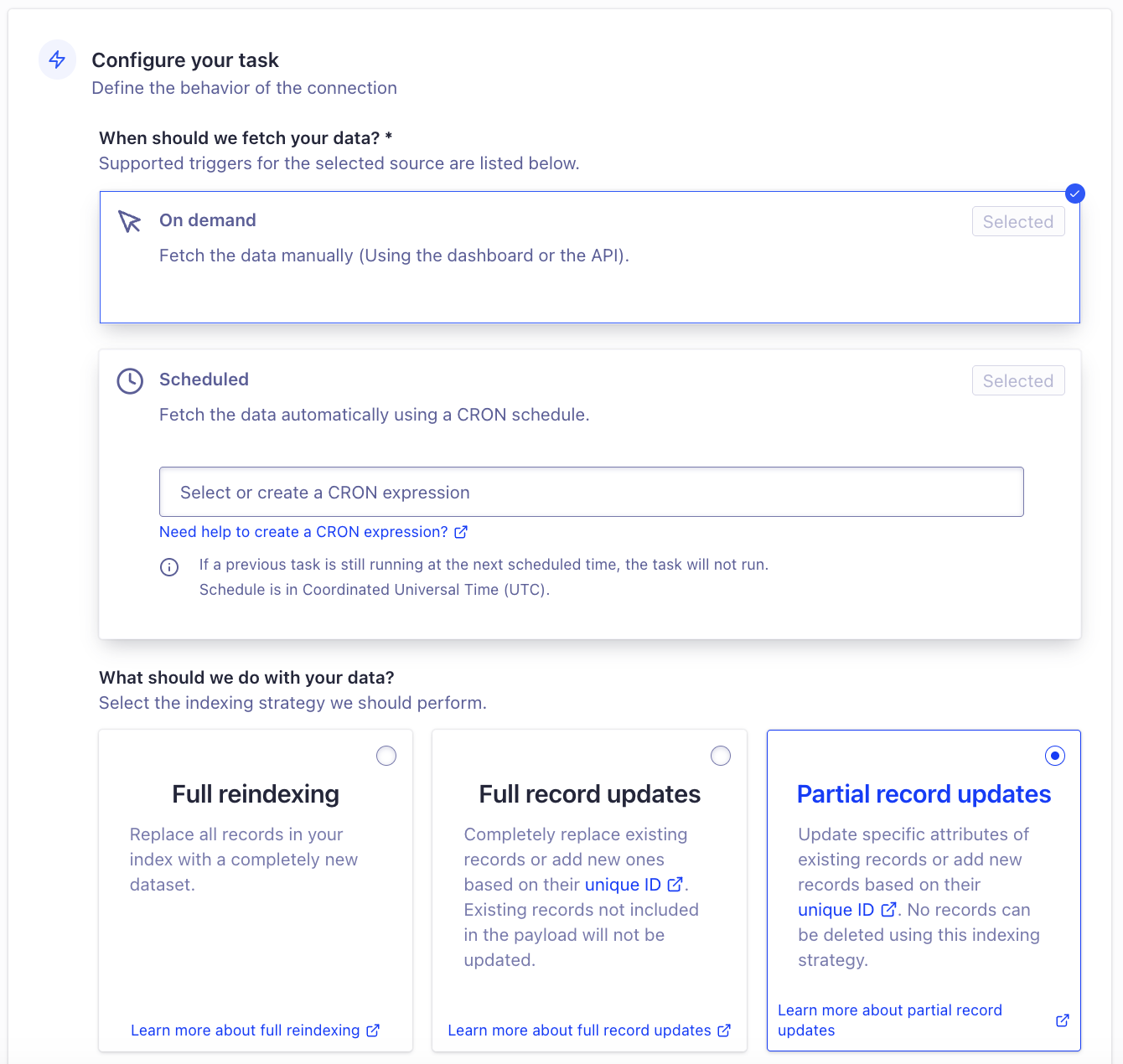
We also get to specify the frequency with which the data gets updated in our search index. Since the users will likely want to exit out of a particular load calculation, go back to their dashboard, look at others in a search interface, and maybe click into the same load calculation again, we’ll need the search index to be updated immediately as soon as our Supabase backend is. This is what I ended up choosing:
On-demand fetching will let me trigger the fetch with an API call any time the user edits a project in a way that would affect the search result. Right below it, I can specify which tables and which keys from those tables actually end up in the search index, so I can make sure that only the data I need to display in the search window plus the unique ID syncs. The vast majority of the fields that the user edits in the process of running a load calculation don’t end up in their dashboard search interface, so I won’t actually have to trigger Algolia to refetch that often. I’m also not deleting records from my database — I’m just setting a deletedAt timestamp so it’s counted as deleted, but the record is still fully recoverable. That means I don’t actually have to worry about fully reindexing the dataset every single time something changes; we can just send partial updates for individual records.
Some of these fields, like the building’s elevation, just aren’t going to affect our search implementation at all. One quality-of-life feature I really liked was that Algolia just assumed that the search index object IDs (that identify each record) were just the primary key from my Supabase table, unless I set it otherwise. Honestly, it was something I forgot to set initially and it saved me some backtracking to find out that it was just handled for me. This let me go back and add that bit to our transformation function that removes the id field from the record, since the data has already been copied into the objectId field by the time that function runs.
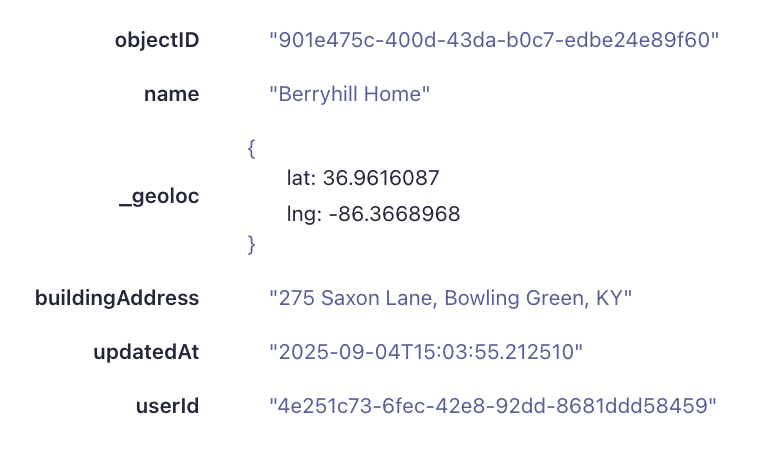
Once this task runs, my Supabase records show up in the index ready to be searched through. Here’s an example of what one looks like now:
This is just a seed project by the way — none of these values are real. Let’s make a frontend to show this info now.
Step 2: The custom frontend
My app is using Shadcn components, so I wanted to implement the UI myself to keep that consistent styling. This is a create use case for InstantSearch React Hooks. As long as you’re doing all of this inside the parent <InstantSearch> component which keeps track of your credentials, you can work with the data programmatically instead of using the default widgets. Check it out:
// inside my <InstantSearch> component
const {
  query,
  refine,
  clear
} = useSearchBox();

return (
	<Input // component from <https://ui.shadcn.com/docs/components/input>
    className="w-full"
    placeholder="Find a specific load calculation"
    value={query}
    onChange={e => {
      refine(e.target.value)
    }}
  />
)
There’s our consistently-styled Searchbox, already hooked up to all the Algolia logic. It works the same for the results window too:
I added a few quality of life features to this, like a dropdown menu on the final column, some reshuffling on smaller screens, and a shortcut button to clear the search query when no results are found. But the gist is the same: beautiful Shadcn UI components, battle-tested Algolia logic, and barely a line or two of data plumbing.
Just for kicks, I even added a button that switches the table into map mode, so everything gets displayed with LeafletJS and OpenStreetMap. The app will be heading into private beta soon, so I’m excited to see if this feature gets some use.
And that’s it! The Supabase connector can be incredibly easy — just drag and drop your data pipeline into place and use the default components. But it can also be super extensible — anyone can build their own components (or use a component library) and just pipe in the data from Algolia.
If this piques your interest, check out the rest of the Algolia connectors docs. Integrations like this are available for lots of data storage options, and they’re all just as snappy.




.webp)














%20(2).svg)